 ecbyts
Updated
Tour Trail: ten short tours to learn ecbyts in the order the work happens
About 5 min read
- Guide
- Video
- Tour
Generate a model, add wells, open the campaign, record the measurement, import the spreadsheet, compare with the regulation, read data quality, meet the seal and export. About 25 minutes, with fictitious data.
ecbyts organizes environmental data in a digital model: sites, wells, plumes, sampling campaigns, results and documents. The Tour Trail is for first-time users, whether at a consultancy, in industry or reviewing someone else's study: instead of exploring menu by menu, it follows the path of a study in the order it happens in the field and in the office.
There are ten short tours, about 25 minutes in total. Each one opens screens that already exist in the app, uses a demo model with fictitious data and tells you where to click. The tours use fictitious data and subscribe you to no plan. To start now, without an account, click the name of any tour below. With an account, the Tour Trail keeps your progress and ends with an assessment; the same page offers a preview for exploring the demonstration without signing up.
Choose where to start
For a first visit, follow the sequence: tours 1–5 introduce the model and data entry; 6–8 cover importing and reading results; 9–10 cover responsibility and export. If you already know a stage, open the tour that addresses your current question. Durations are estimates; allow extra time to practice.
The goal is to repeat the route through the interface and recognize what to check on each screen. Watching the video helps you find your way; practicing the tour lets you try the clicks with a demonstration model.
The ten tours, in the order of the work
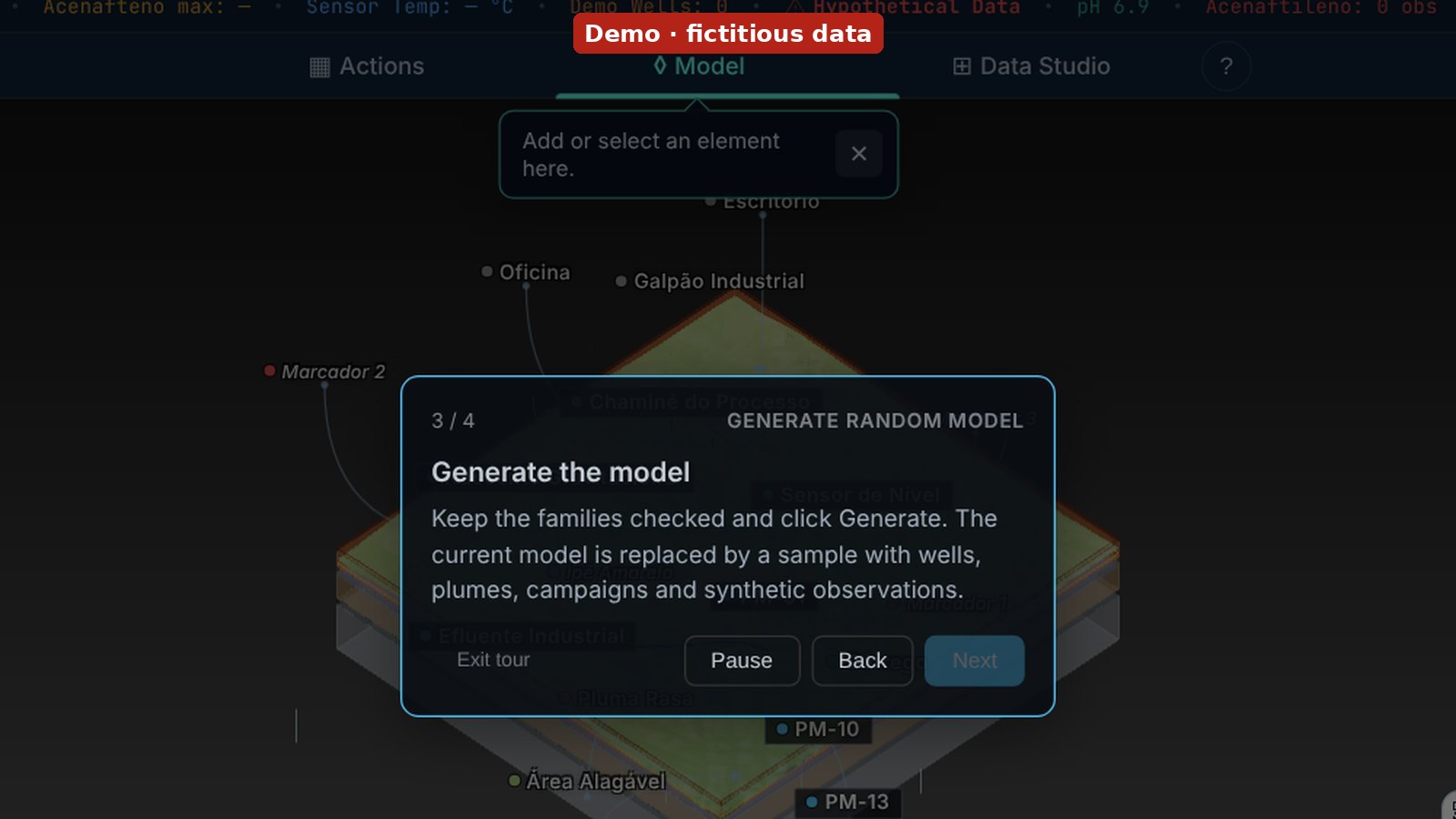
- Generate an example model (1 min). The New button, in the File group, creates a model with synthetic wells, plumes, campaigns and observations to explore the app without real data.
- Add your first well (2 min). Pick the Well family and see the element appear in the 3D scene and in the element list.
- Edit an element's properties (2 min). Select an element, change its name and watch the list update; every edit goes into the history and can be undone.
- Create a sampling campaign (2 min). A campaign groups the observations of one field trip, with a name and dates.
- Record a field observation (3 min). On an element, create the observation, choose the parameter (pH or benzene, for example) and type the value. Before using real data later, also check the unit, sampled medium and date against the source record.
- Import data from a spreadsheet (4 min). The wizard reads an example file, links each column to a field, points out what is missing and shows, before merging, what goes into the model.
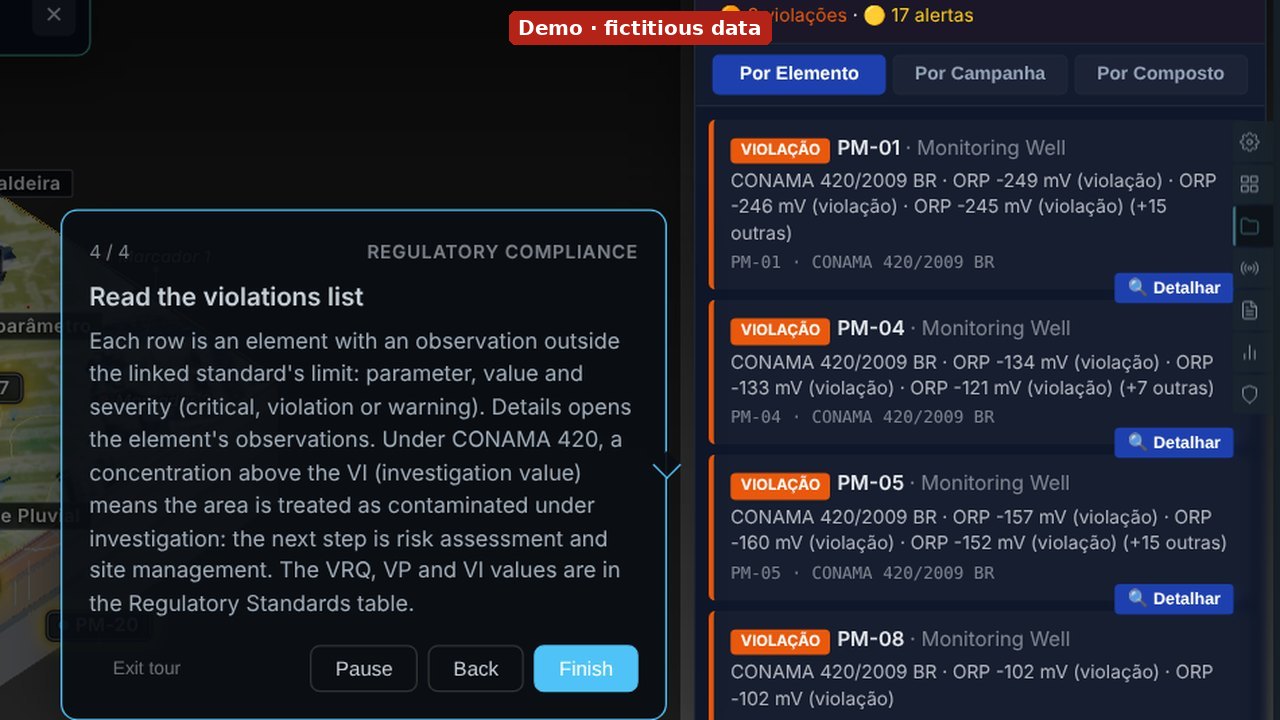
- Compare results with legal limits (3 min). Bind Brazilian Resolution CONAMA 420/2009 and read the list of elements with observations above the limit, by severity.
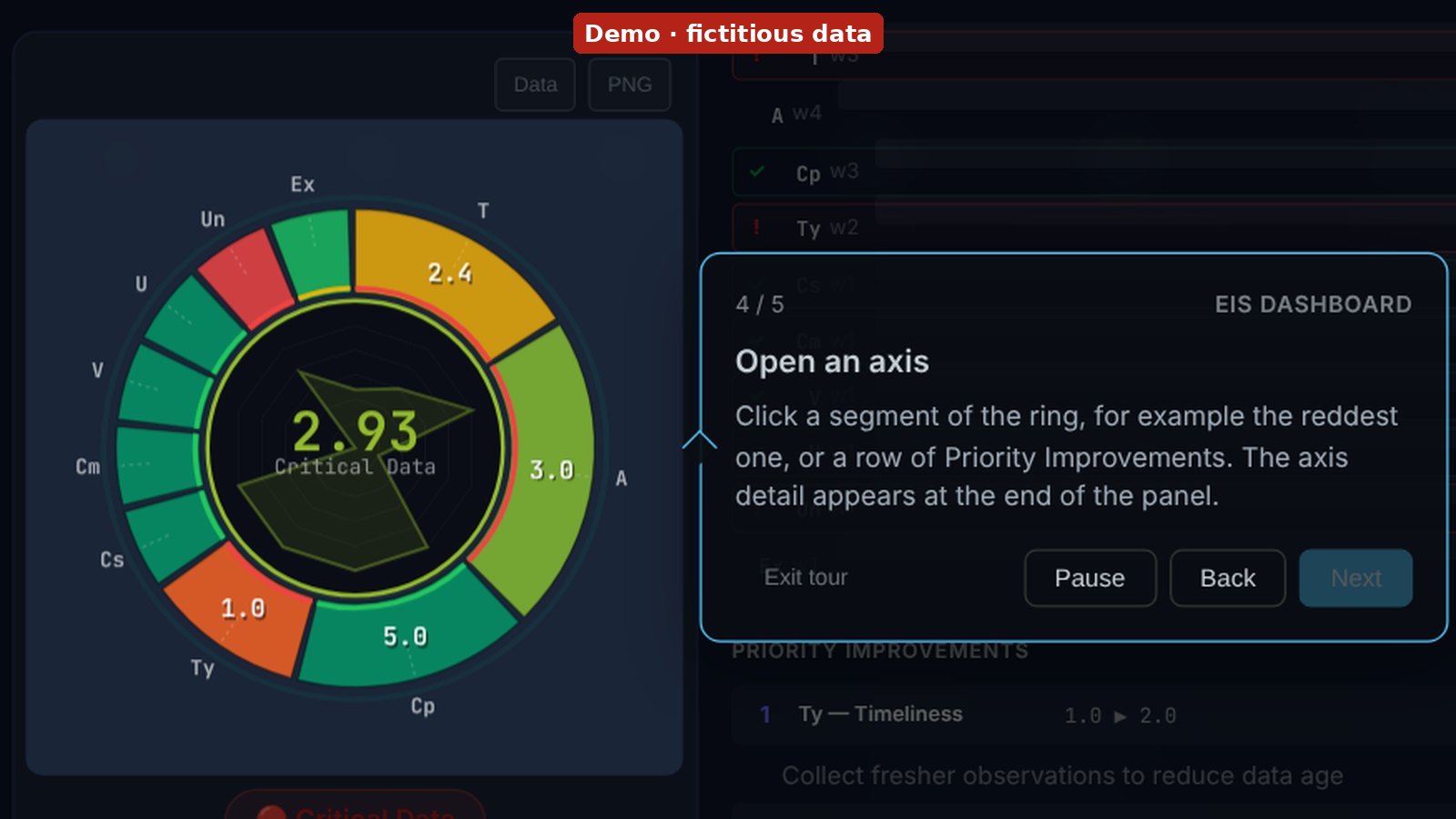
- Read the model's EIS index (3 min). The Environmental Integrity Score (EIS) organizes application indicators on a 0–5 scale across ten axes. Open an axis to understand its score and missing information; it does not replace checking laboratory results.
- Meet the ECBYTS Seal (3 min). The seal sums up the model in a QR code and shows who answers for each piece of data and what is still unsigned. The article From QR code to the person responsible explains how to read it.
- Export the model as an ECBT key (2 min). In Export, the Copy Key button generates the key of the whole model to archive or share.
The tours on video
The videos below show demonstrations with fictitious data from an earlier version. Some recordings end before the walkthrough is complete and do not prove every action. Use the tour links to practice the current version; videos only play when you press play.
1. Generate an example model
2. Add your first well
3. Edit an element's properties
4. Create a sampling campaign
5. Record a field observation
6. Import data from a spreadsheet
7. Compare results with legal limits
8. Read the model's EIS index
9. Meet the ECBYTS Seal
10. Export the model as an ECBT key
Before moving to your data
Choose an action you just practiced and repeat its route through the interface. For a real spreadsheet, review column mappings and the preview before merging. When interpreting a comparison, check the parameter, unit, sampled medium and applicable scenario. Before archiving or sharing an exported key, check the model contents.
Where the trail stops
The trail teaches how to use the app. Investigating a contaminated site and technical training stay outside it. The models are demos: the violation list, the EIS score and the seal shown in the tours come from fictitious data and describe no real site. The CONAMA 420 comparison flags concentrations above the regulation's investigation value (VI); it is not a technical report, it draws no conclusion that a site is contaminated, and the professional in charge remains responsible for it.