 ecbyts
Updated
Walk through a fictitious contract from the parties to the goal
About 4 min read
- Guide
- Audio
- Tour
The tour shows, in 20 steps, how to read who takes part, where, how much, under which conditions and toward which goal in a contract modeled in ecbyts. Fictitious data.
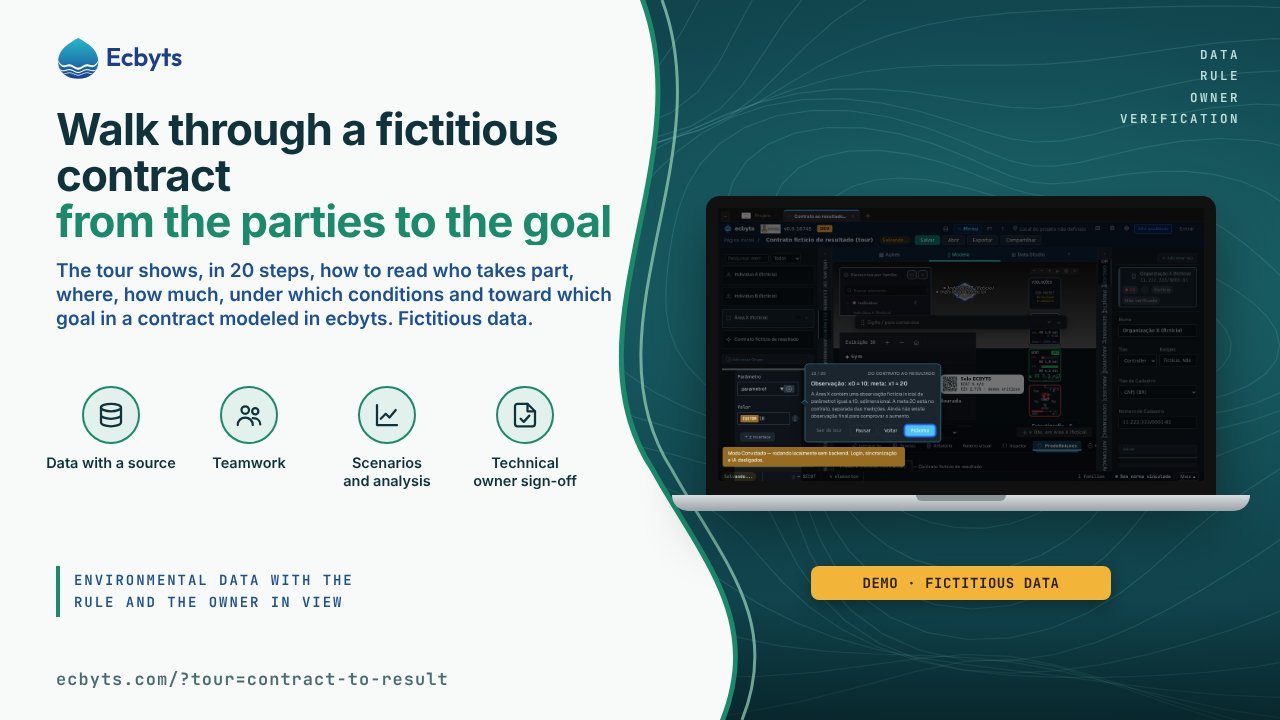
A contract ties people, a place, a cost, conditions and a goal together, and that information is usually scattered across separate documents. The From contract to result tour walks, in an ecbyts demonstration model, the path from the parties to the observation that supports the goal. To practice you only need a browser: the example opens in its own tab, with fictitious data, in which A signs with B a contract over Area X, at cost Y, under preset Z, between t1 and t2, to take parameter1 from x0 to x1.
What the tour shows, step by step
- Individual A: the starting point. The example opens in its own tab, with A selected in Elements.
- Open Org/Op. The Org/Op tab shows the area tree with Organization X.
- Organization X and demonstrative CNPJ. The node carries the CNPJ 11.222.333/0001-81, the Fictício and Não verificado badges (fictitious, unverified) and the counter 2 (A and B).
- Open Connections. The Connections tab gathers the context stamps of the project.
- Individual A's stamp. A's stamp points to the same Org/Op node and repeats the demonstrative CNPJ.
- The contract is an intangible element. A and B are linked to a single contract of the Intangible family.
- The commitment and its conditions. The properties hold the link to the campaign, the cost and the goal.
- Individual B: the other party. B is linked to the same contract; the exercise does not assume who hires or who executes.
- Individual B's stamp. B has its own context stamp, with the same organization and the same CNPJ.
- Area X: where to track. Area X is linked to the contract and holds the initial observation; the geometry is schematic.
- Open the cost analysis. The Cost tab gathers the costs of the elements.
- Cost Y: R$ 1,000 in the example. Y is a fictitious budget recorded once in the contract in 2026, not a payment made.
- Open Preset. In the Preset tab, contractual conditions are kept separate from regulatory rules.
- View preset Z. Interactive step: the guide only continues after you click Preset Z (fictício, contratual).
- Preset Z: contractual conditions. The details panel shows Z as the fictitious condition of the contract, with the goal of reaching 20.
- Open Campaigns. The Campaigns tab is where you check the interval between t1 and t2.
- t1 and t2: the commitment period. In the example, t1 is 01/01/2026 and t2 is 31/12/2026, and the observation keeps its own date.
- Observation: x0 = 10; goal: x1 = 20. Area X has a single observation, parameter1 equal to 10, dimensionless; the goal of 20 stays in the contract.
- Open Visual script. The Storyboard tab gathers the timeline and the editable tours.
- Edit this script. Find From contract to result, click Edit and save the steps in the model; Restore default recovers the original.
What this tour is not
- The example is fictitious: A, B, Organization X, the CNPJ and the values do not represent real ties, and the CNPJ went through no registry lookup.
- The context stamp records an association inside the model; it is not a digital signature nor proof of a tie or of representation.
- The goal x1 = 20 is not a measurement: it can only be taken as reached when a final observation supports it, and that observation does not exist in the example.
- Cost Y is a forecast, and a forecast does not prove payment.
How to practice
Open the tour. It has 20 steps, about 6 minutes; one of them waits for your click on Preset Z. To repeat the exercise outside the tour, download the demonstration model, a fictitious file meant only to follow the reading.