 ecbyts
Save on your computer or in the cloud: what stays with you and what Pro adds
About 5 min read
- Guide
- Tour
On the Free plan the model stays on your computer and its content is not sent to ecbyts. The cloud and share links are part of Pro, and only the model owner can share.
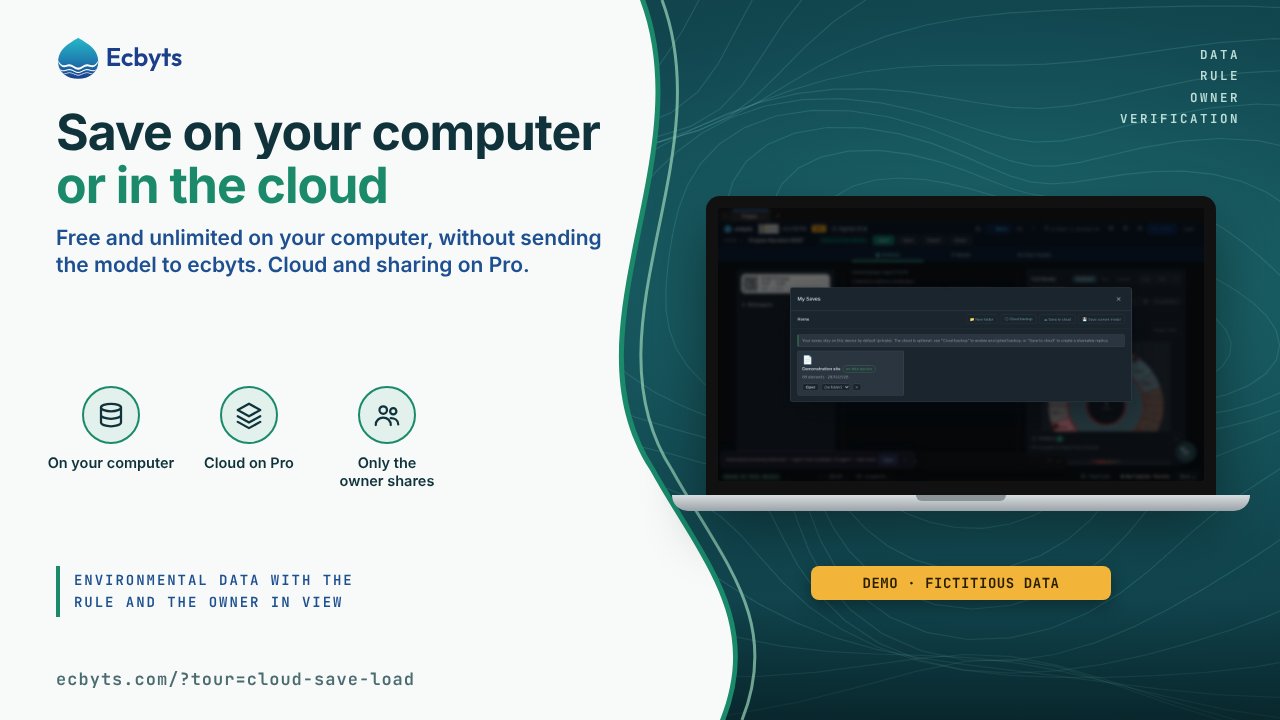
ecbyts keeps your work in two ways. The default is saving on your computer: the model stays in the browser you are using, or in an .ecbt file you take wherever you want. The other way is saving to the cloud, an explicit choice on the Pro plan to open the same model on any computer and share it with other people.
This article explains what each path does, what changes between the plans and what leaves your computer, or does not.
Saving on your computer
The Save button stores the model on this device. In My Saves each save shows the "on this device" tag, and the window itself says that saves stay on the device by default. Autosave follows the same rule: the latest states of the model are kept in the browser, so you can go back to an earlier point if something goes wrong.
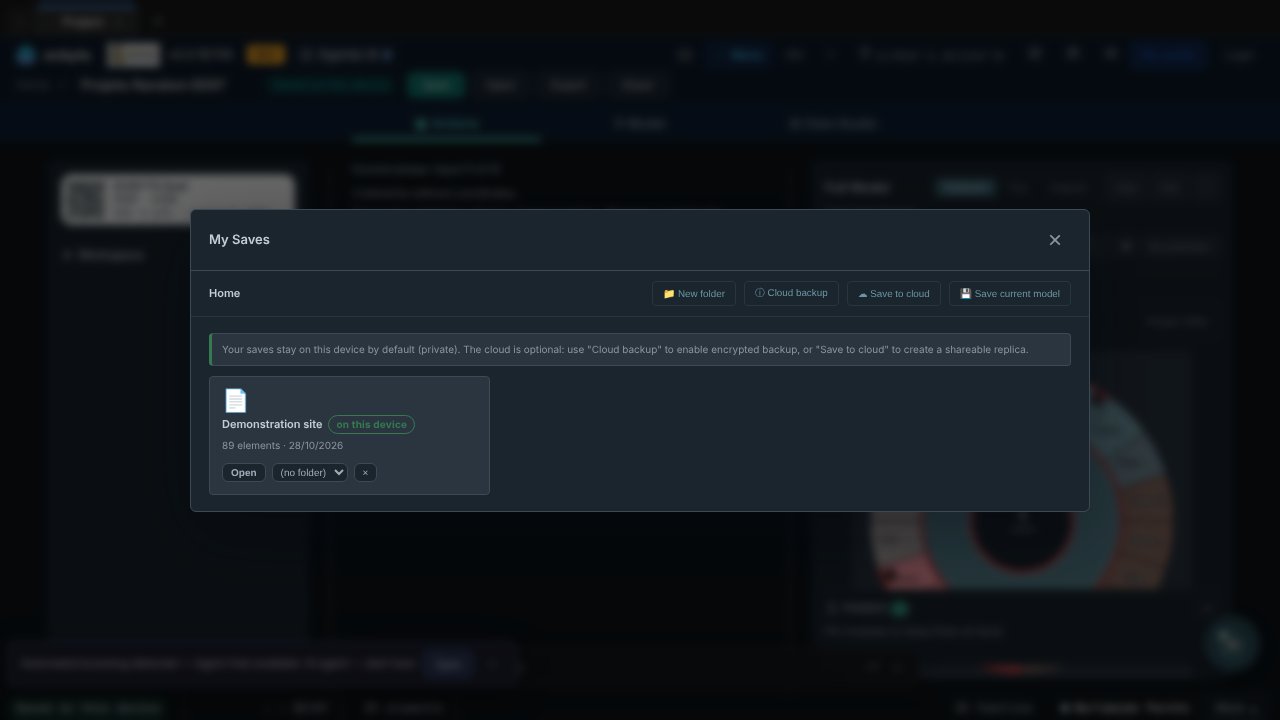
To take the model to another computer or keep a copy outside the browser, use Export. The downloaded file is the .ecbt key of the whole model, inside a .zip with a mandatory password. The password is asked for on the spot and is not stored anywhere. Whoever receives the file opens the model on their own computer, with the password you give them.
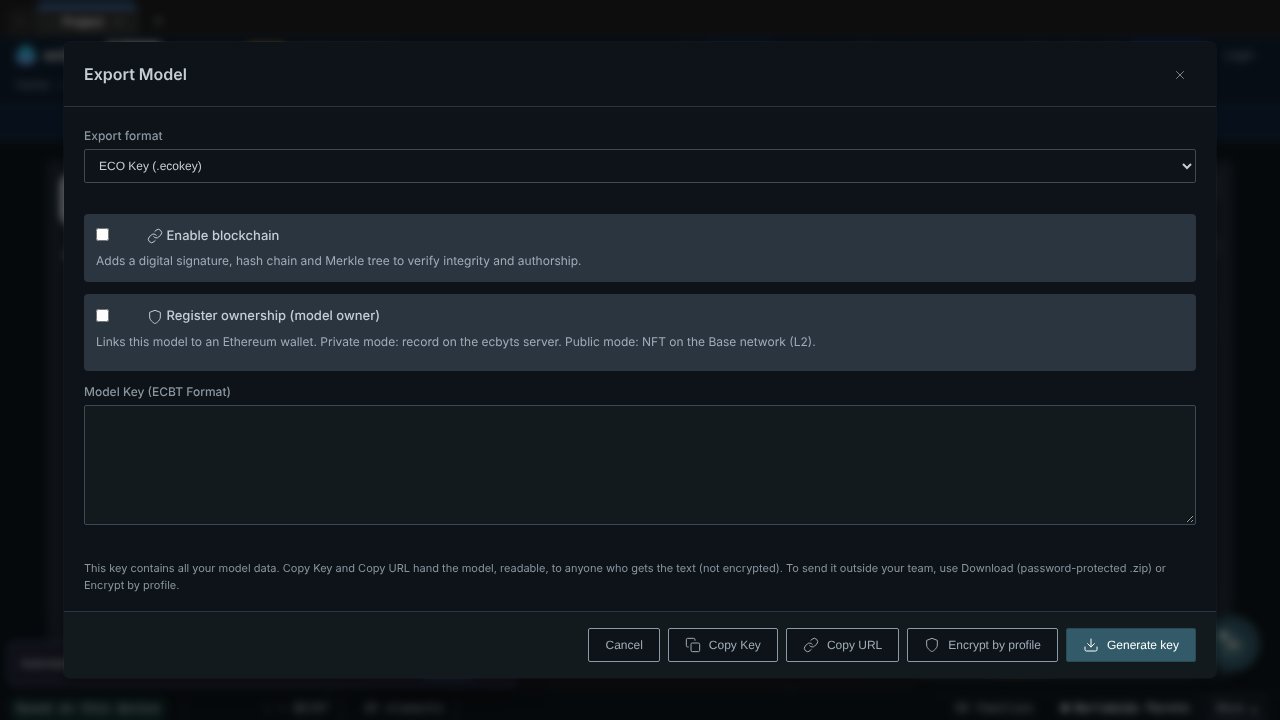
Copying the key as text or as a link is different: that copy has no password. Anyone who has the key opens the whole model, so treat the key as the model itself.
On the Free plan there is no limit on projects, models or elements on your computer.
What goes to ecbyts when you save on your computer
No model data. Elements, names, coordinates, monitoring points, observations and documents stay in the browser or in the file you exported. Saving on your computer makes no call to ecbyts servers.
The app sends only two things, and neither carries the model content. The first is anonymous usage metrics, such as which screen was opened and which button was clicked, to understand what needs improving. The second is technical reports when something fails, with personal data removed before sending. To turn usage metrics off, open the ⓘ icon in the bottom bar, click Cookies and uncheck the anonymous usage metrics option. The change applies right away, in this browser.
Some actions send data off your computer, and only when you choose them. Saving to the cloud sends the model to your account. Issuing the ECBYTS Seal records a verifiable summary of the model. Registering model ownership, in the Export window, stores that record on the server. Using the AI assistant sends your request and the context it builds to the AI provider. None of them happens on its own.
One caution: local saves belong to the device, not to the account. On a shared computer, whoever uses the same browser afterwards sees the models saved in it. Prefer a browser profile of your own, or delete the saves in My Saves when you finish.
Saving to the cloud
Save to cloud is a separate button and asks for confirmation. It creates a replica of the model in your account, and the local save stays where it was.
With the model in the cloud you open the same work on any computer where you sign in, create share links, work with organizations and teams, check the version history and publish to Radar. Each cloud model is seen only by its owner and by whoever the owner authorized. This rule is enforced on the server, not only on the screen.
Saving to the cloud and sharing by link are Pro features. On Free, if you try, the app tells you so and the model stays saved on your computer.
Sharing
Only the model owner shares. If someone else tries, the app refuses with the message "Only the model owner can share it".
The owner can set a password to open the model, with at least 8 characters. Anyone who is not the owner has to type it to open the model, by any path: the model list, a link or a tour. Once accepted, the model stays unlocked for 12 hours. The password belongs to the model, not to a person, and the app itself suggests passing it by voice. When a link goes out without a password, the app warns that anyone with the link opens the whole model.
You can also share without the cloud: export the .ecbt file with a password and send it through the channel you prefer.
Free and Pro
Free is for working on your computer, with no limit on projects, models and elements, and with export and import of the .ecbt key. The ECBYTS Seal with real data allows up to 20 issues on Free.
Pro adds the cloud: sync, share links, version history, publishing to Radar, multiple organizations and the Seal with no issue limit. Prices are at ecbyts.com/pricing.
To practice, open the Save and load in the cloud tour or the Export the ECBT key tour.