 ecbyts
3D model, elements and scene: eleven tours to learn your way around ecbyts
About 4 min read
- Guide
- Tour
From what ecbyts is to copying, hiding and reshaping elements, saving scenes, moving the camera, reading the Inspector and animating the model over time: eleven tours of about 22 minutes, with sample data.
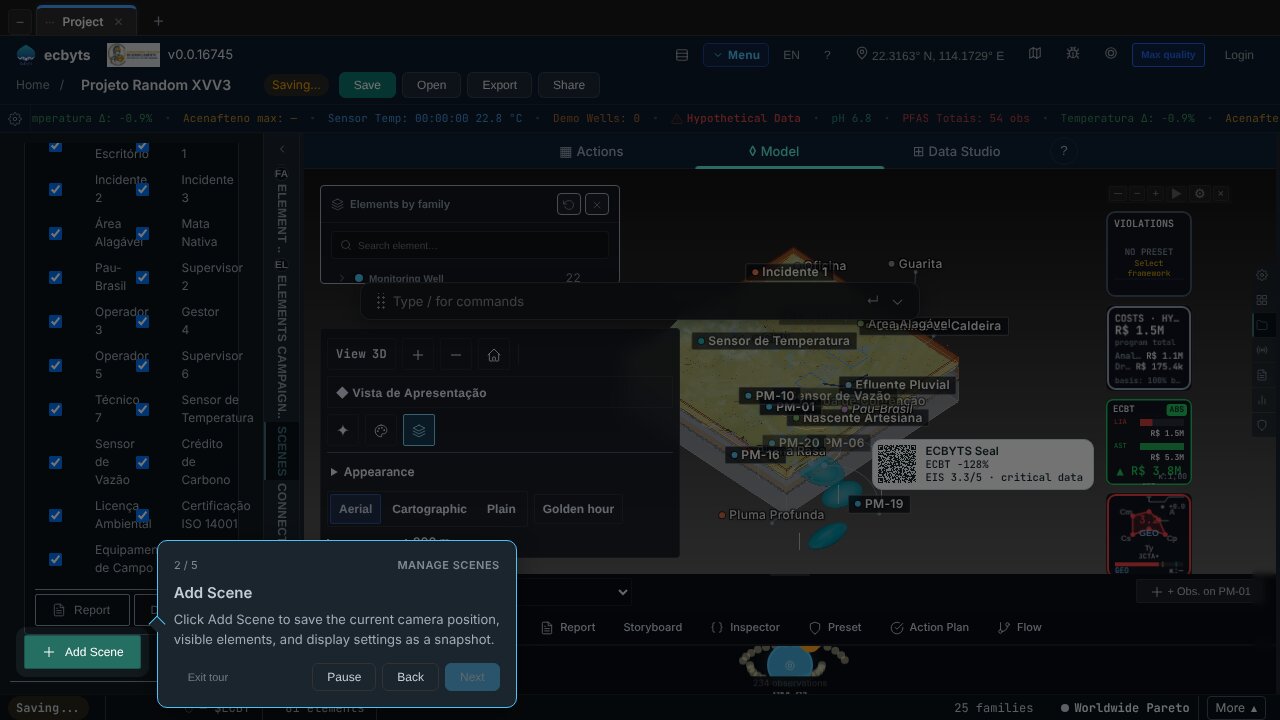
In ecbyts, the environmental study of a site lives in a digital model: wells, plumes, buildings and subsurface layers appear in a 3D scene, each with its own data and measurements. Anyone working on contaminated site investigation, monitoring or permitting spends a good part of the time in that scene: choosing what to show, framing the view for a report, checking where a value came from.
The eleven tours in this article cover that part of the app, from the first contact to the presentation features. Each one opens the screens that already exist and says where to click, in one to three minutes. You can start now, without signing up, by clicking the name of any tour below.
The tours in this topic
- Demo zero: what ecbyts is (3 min). Shows on the real screen the problem (environmental data arrives scattered), the single model that brings it together, the Areas tab, the record of a monitoring well with its observations by campaign, and the Results by Campaign module. For anyone who has never opened the app.
- Copy and paste elements (1 min). Select an element in the list, use Copy and Paste on the Home tab and see the copy appear slightly offset with a new identifier. Handy for filling a model quickly.
- Toggle element visibility (1 min). The eye icon next to each element hides or shows it in the 3D scene. A hidden element stays in the model, it just is not drawn: useful for focusing on one part of the site.
- Edit element shape (3 min). Select a plume, a boundary or a building, open the editing toolbar, add vertices by clicking in the scene and drag existing ones to reshape the outline. When you close, the 3D geometry is updated.
- Manage scenes (2 min). A scene stores the camera position, the visible elements and the display settings. Save one with Add Scene and return to it with a click, for example overview and detail, for reports and presentations.
- Camera views (1 min). Go back to the isometric view, the standard engineering view, with the home button in the scene panel. To orbit, drag with the left button; to pan, the right button; the mouse wheel zooms in and out.
- Zoom and fit controls (1 min). Adjust the distance with the zoom buttons or the mouse wheel and reframe the whole model with the home button, after zooming or adding elements.
- Inspector panel (2 min). The Inspector, opened from the bottom panel bar, shows the selected element's data as stored in the model: coordinates, properties and observations. It helps check an import.
- Query and edit the data without SQL (3 min). The full-screen Inspector shows a tree where each field has its type in view, with a search that highlights matches. The trail shows the value's address, which you can cite in a report. Read-only fields refuse editing, and an editable value is checked (type, required, range) before it enters the model. The Tables tab shows the same content in rows and columns.
- Storyboard keyframes (3 min). In the bottom panel, the timeline spreads observations over time. Add a keyframe (a snapshot for animation) at the current position and click the keyframes to jump between moments; the 3D scene shows the data from that instant.
- Timeline playback (2 min). With the play, pause and step buttons, the model is animated over time. Slower speeds help you see gradual changes, such as a contamination plume.
Times are estimates; you may take longer to practice. The tours use a demo model with sample data, built in the browser, and save nothing to the cloud. The first tour shows its texts in Portuguese even when the interface is in English, because those texts are not translated yet.
To follow the flow of a study, from the well to the export, see the Tour Trail.