 ecbyts
Field data and sampling campaigns: four tours to practice in ecbyts
About 2 min read
- Guide
- Tour
Type readings in bulk, edit or delete an observation, link fields between elements and choose which campaigns show in 3D: four short tours, with sample data.
In a sampling campaign, fieldwork ends in a pile of readings: pH, water level, benzene, each from one well, on one date. In ecbyts these readings are observations attached to a model element (a well, for example) and grouped into campaigns, which are field trips with a name and dates. The quality of a study depends on recording correctly, fixing what came out wrong and comparing campaigns without getting lost.
The four tours below cover that day-to-day part. Each one opens the app with a demo model and walks you through the real screens, telling you where to click. If you have not yet recorded your first observation, start with tour 5 of the Tour Trail and come back here.
The tours in this topic
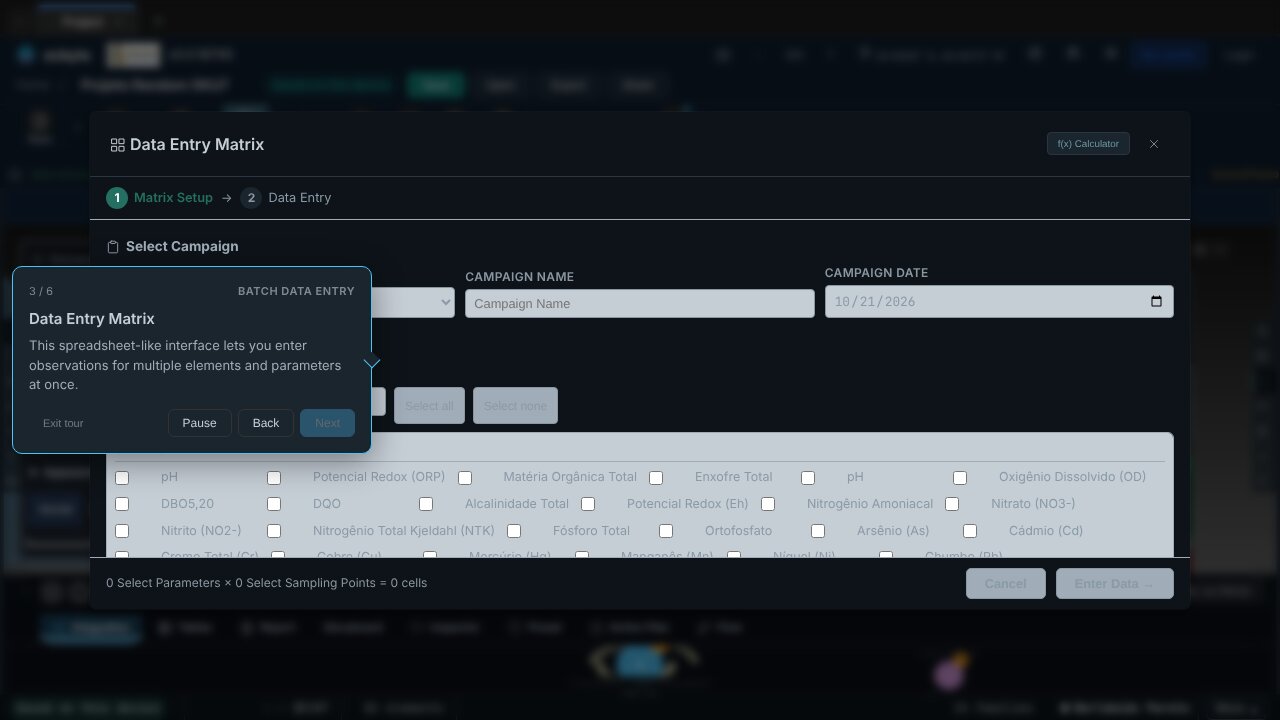
- Batch Data Entry (3 min). Opens the data entry matrix, a spreadsheet where each row is an element and each column is a parameter. You type values into the cells and click Save All: only what you typed becomes an observation, with date, unit and campaign. The tour only moves on when the save really happens.
- Edit or Delete Observations (2 min). Select an element and click a point in the constellation, the panel below the 3D view where each point is an observation. On the card that opens, change value, unit, date or campaign, or remove the observation with the trash button. A deletion can be undone with Ctrl+Z.
- Create Field Binding (3 min). An advanced-level tour on bindings, which link a field of one element to another to create cross-references. The path goes through choosing the source element and the observation, and configuring the target.
- Campaign Visibility (1 min). In the Campaigns tab, untick a campaign's visibility box: only visible campaigns feed the 3D view. It is the way to compare periods or sampling events without deleting anything.
The tours use sample data and save nothing to the cloud: everything happens in the model open in your browser.
For the full path, from model to export, see the Tour Trail.