 ecbyts
Working with a subcontractor: review the delivery, merge the file and close the batch
About 2 min read
- Guide
- Tour
Three short tours show, on the screen itself, how to decide on a delivery, compare the received file with your model and close access at the end of the work.
When a subcontractor collects or analyzes part of a study, the data comes back to you as a file or an ECBT key (the ecbyts exchange format). Before it enters the model, someone has to check what arrived, decide what to accept and, at the end, close the access that was granted.
These three tours follow that path in the app itself, in the order of the work. All of them use a demo model with sample data, and none of them applies, approves or revokes anything for you: the final decision always stays with whoever is on the screen.
The tours in this topic
- Delivery for review: approve or reject (4 min). A delivered observation arrives as "pending" with its origin (file, sheet and row). The tour shows the card, the approve and reject buttons and the rule that whoever submitted cannot approve their own delivery. It also says what is still missing: rejection today does not go through that rule and requires no reason.
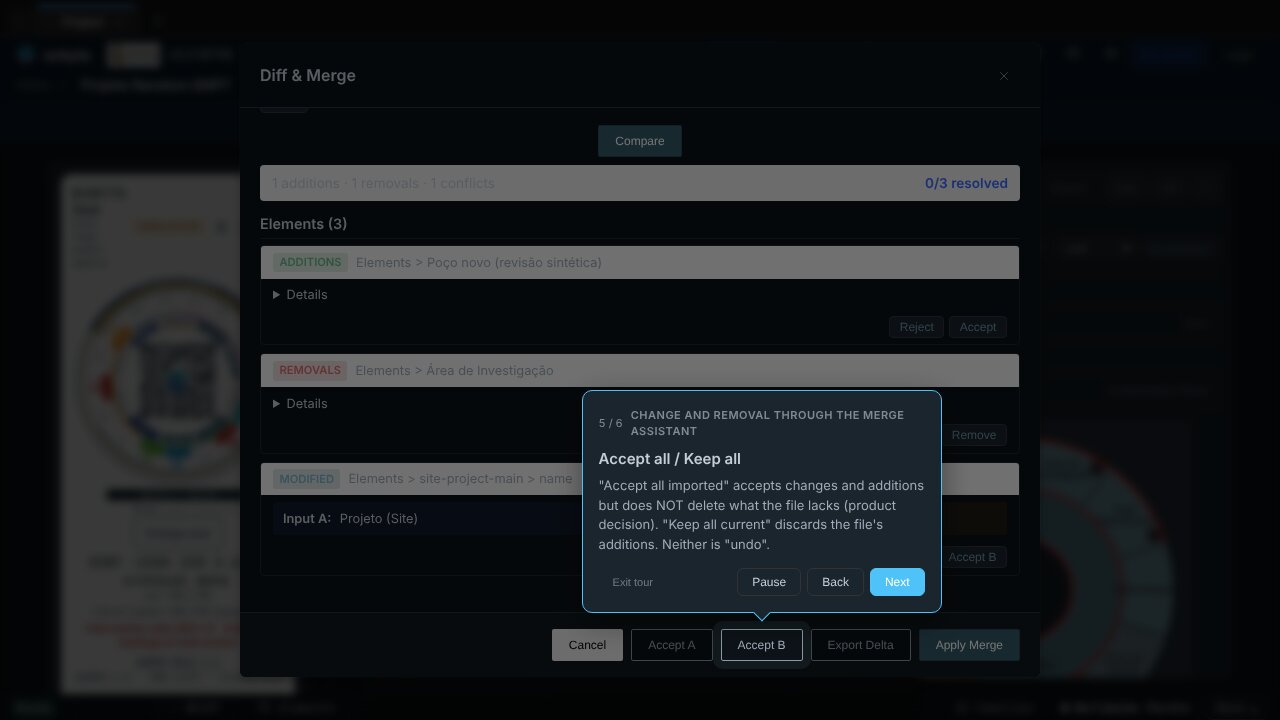
- Change and removal through the merge assistant (4 min). The merge assistant compares your model (A) with the received file (B), shows each difference on a card and lets you keep the current one or accept the imported one. The tour explains what "Accept all imported" does (it accepts changes and additions but does not delete what the file lacks) and ends without applying anything.
- Closing the subcontractor batch (3 min). Closeout takes three gestures: revoke the access grant (this closes access and does not delete data), export the final package and leave the record in the audit trail, which only accepts additions. The tour says plainly that there is not yet a single "close batch" screen.
The tours use sample data and save nothing to the cloud. To see the others, go back to the Tour Trail.