 ecbyts
AI assistant and neural networks in ecbyts: six guided tours
About 3 min read
- Guide
- Tour
Six short tours show where the AI chat is, how to set up the provider, what kind of natural language commands the assistant accepts and how to create, train and use a neural network for prediction.
ecbyts has a chat panel with an artificial intelligence assistant: instead of hunting for the right button, you write what you want to do, for example add wells or show the benzene observations, and the assistant uses the app's tools. ecbyts also has a neural network manager, which learns patterns from the model's observations to estimate values and compare scenarios.
The usual caution for any estimate applies: what the assistant answers and what the network predicts depend on the chosen provider, the available data and your own review. The tours below show where the features are and how to use them; they do not guarantee the outcome of any query or model. A neural network, here, is a mathematical model that adjusts its weights to observation data in order to estimate a value from input parameters.
The tours in this theme
- Open AI Chat (2 min). Shows the button that turns the chat panel on and off, the panel that opens on the side and examples of what to type, such as adding three wells or showing benzene data.
- Configure AI Provider (3 min). Shows the supported providers, which the tour text lists as OpenAI, Groq, Anthropic and local models via LM Studio, and where to choose the model. To use a cloud provider you need an API key of your own; the tour says the key is stored locally and is not sent to ecbyts servers.
- Natural Language Commands (3 min). Presents command examples, the actions the assistant can run (create and edit elements, interpolate, generate reports, export) and the idea of agentic tools, where the assistant calls app functions on your behalf. For the assistant to actually answer, the provider must be set up.
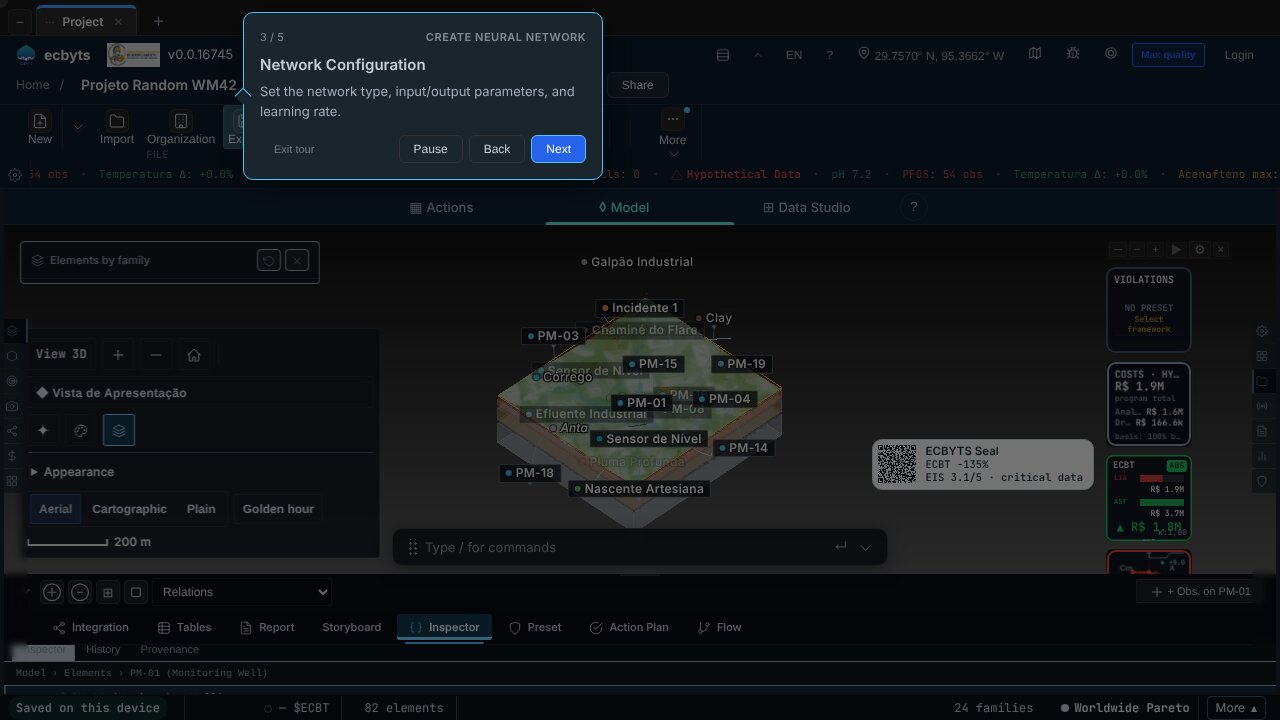
- Create Neural Network (3 min). Opens the Neural Network Manager and walks through the network configuration (type, input and output parameters, learning rate) and the definition of hidden layers.
- Train Neural Network (4 min). Explains that the network uses the model's observations as training data, how to choose the number of epochs (full passes over the data) and how to read the loss curve during training. The tour warns that enough data points are needed and that overfitting, when the network memorizes the data and loses the ability to generalize, must be watched.
- Run Prediction (3 min). Shows how to select a trained network, enter input values and change them in what-if mode, to see how the estimate changes in a scenario.
Tours 5 and 6 set up a demo model with sample data, because they depend on observations. When you use the chat for real, the text goes to the AI provider you configured; the key is stored locally.
To see all tours in working order, open the Tour Trail.