 ecbyts
Off-road truck blind spot, academic scenario
About 3 min read
- Guide
- Audio
- Video
Open in your browser, no account, the 3D model of an off-road truck with a van in its blind spot and six moments to discuss. Academic scenario, estimated values.
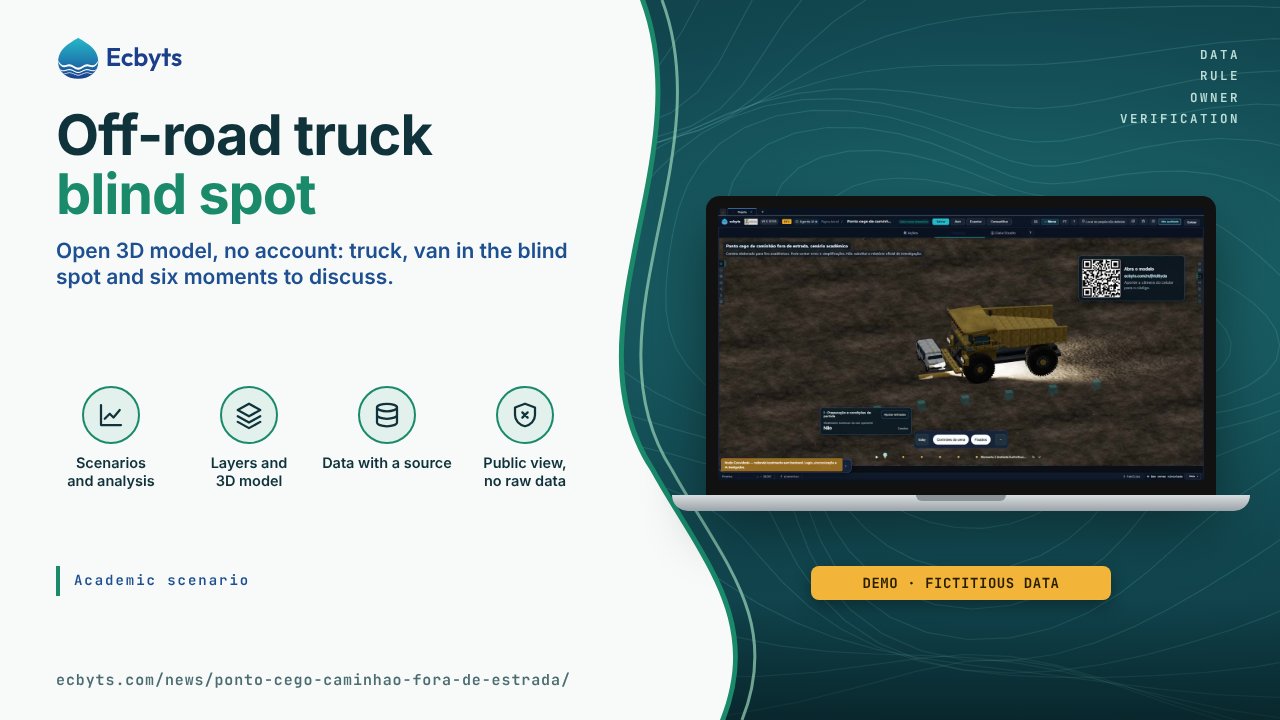
An off-road truck, the kind used in mining, is much bigger than an ordinary car, and from the cab the driver cannot see a large strip around the vehicle: the blind spot. A van parked there may simply not be seen. This academic scenario turns that situation into a digital twin, a 3D model that you open in the browser and explore with the mouse or your finger, built for class and discussion from public-domain teaching material, with estimated values.
The video below shows the open model, with the timeline moving through the six moments.
Video transcript
- Off-road truck blind spot, academic scenario. The 3D model opens in the browser, no account.
- The van is parked in front of the truck, on the right side, far from the cab, which is on the left.
- The timeline, at the bottom, moves through the six moments of the scenario, from the preparation to the alert and the stop.
- The moment card shows the conditions at that instant, such as the van's warning light, and the "Ajustar entradas" (adjust inputs) button.
- The QR code, in the corner, opens the same model at ecbyts.com/m/jhtd6yda. Academic scenario, estimated values.
What you will learn
- The difference in size. The van is much smaller than the truck. Rotate the scene and zoom in to compare wheels, cab and body.
- Where the blind spot is. The van is in front of the truck, on the right side, far from the cab, which is on the left.
- How the situation evolves in six moments. Each point on the timeline, at the bottom of the screen, opens a moment, from the preparation to the alert and the stop.
- What changes when a condition changes. The card for each moment shows the conditions at that instant, for example whether the van's warning light was working. In Adjust inputs you change a condition and see the effect.
- How to separate fact, estimate and proposal. The Report tab separates what is fact in the scenario, what is an estimate and what is an improvement proposal.
In Storyboard there are five saved views: the whole scene up close, the right side, the top view with the distances, the cab and the excavator in the background.
Prerequisites
All you need is a browser, on a computer or a phone. No account or password is needed: the address ecbyts.com/m/jhtd6yda opens the model. Before the model opens, an academic scenario notice appears; click Open the model to continue. The model labels and the tour text are in Portuguese.
What this lesson is not
Scenario prepared for academic purposes. It may contain errors and simplifications and does not replace the official investigation report.
The model is an educational visual reconstruction. It does not reproduce a forensic expert examination, does not simulate the physics of the movement or the cameras' field of view, and the time between moments is illustrative. The numbers in the analysis are indices for classroom discussion, not a measurement of risk.
How to practice
- Open the academic scenario model and click Open the model in the notice.
- In the Actions tab, click Guided Tours and choose Tours in this model.
- Start the tour Ponto cego · percurso educativo. In nine steps, it shows what to look at in each part of the scene.
- Click the six points on the timeline and, at one of them, use Adjust inputs to change a condition.
- Open the Report tab and compare what is fact, what is an estimate and what is a proposal.